
Why Territory Assignment Matters
Poorly assigned sales territories cost companies money in two ways: wasted drive time and unbalanced workloads. When reps spend hours driving between accounts instead of selling, revenue suffers. When one rep has 40 accounts within 20 minutes while another has 15 accounts spread across two hours, turnover follows.
The solution is data-driven territory assignment based on actual drive times, not gut feel or zip codes. Google Sheets combined with the Route Matrix add-on makes this straightforward.
What You’ll Build
By the end of this tutorial, you’ll have a matrix showing the drive time from each sales rep’s home base to every customer account. You’ll use this to assign accounts to reps while balancing total drive time across the team.
Step 1: Prepare Your Data
Create a new Google Sheet with two tabs.
On the first tab labeled “Reps,” list your sales team with their home base addresses:
| A | B | |
|---|---|---|
| 1 | Rep Name | Home Base |
| 2 | Sarah Chen | Austin, TX |
| 3 | Marcus Johnson | Round Rock, TX |
| 4 | Lisa Martinez | San Marcos, TX |
On the second tab labeled “Accounts,” list your customer locations:
| A | B | C | |
|---|---|---|---|
| 1 | Account Name | Address | Annual Value |
| 2 | Acme Corp | 123 Congress Ave, Austin, TX | $50,000 |
| 3 | TechStart Inc | 456 Main St, Round Rock, TX | $35,000 |
| 4 | Hill Country Supply | 789 Ranch Rd, Dripping Springs, TX | $28,000 |
The Annual Value column is optional but useful for balancing territories by revenue potential, not just account count.
Step 2: Generate the Drive Time Matrix
Install Route Matrix from the Google Workspace Marketplace if you haven’t already.
Configure the add-on:
- Set the Starting Locations to your rep home bases (column B on the Reps tab)
- Set the Ending Locations to your account addresses (column B on the Accounts tab)
- Choose Time as the output
- Select Driving as the travel mode
Click RUN (or RUN FAST for larger datasets). Route Matrix generates a grid showing drive time from each rep to each account:
| Sarah Chen | Marcus Johnson | Lisa Martinez | |
|---|---|---|---|
| Acme Corp | 5 | 24 | 36 |
| TechStart Inc | 28 | 1 | 54 |
| Hill Country Supply | 34 | 47 | 41 |
Step 3: Identify Optimal Assignments
The matrix immediately reveals the closest rep for each account. In the example above:
- Acme Corp → Sarah Chen (5 min)
- TechStart Inc → Marcus Johnson (1 min)
- Hill Country Supply → Lisa Martinez (41 min)
For small teams, you can make assignments visually. Use Route Matrix’s built-in formatting option to highlight the minimum value in each row:
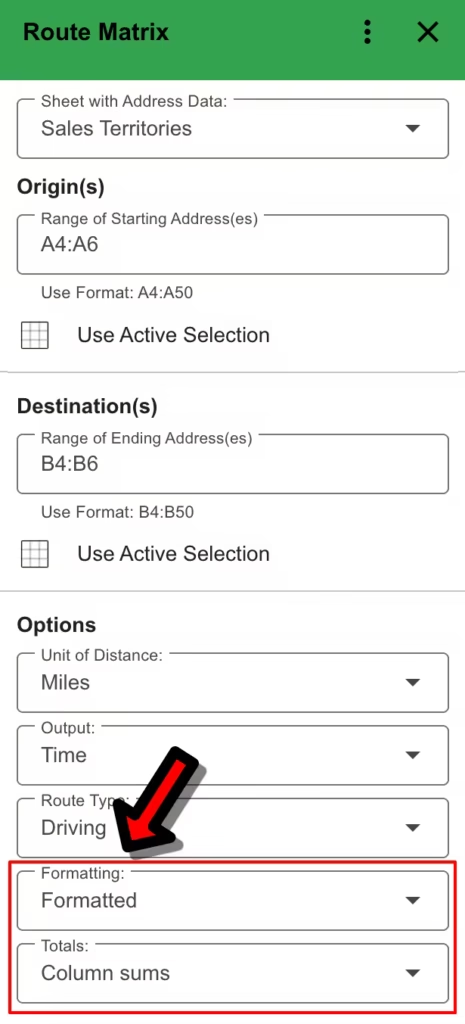
- Click the Formatting drop down
- Choose “Formatted”
- Click on the Totals drop down
- Choose Column sums
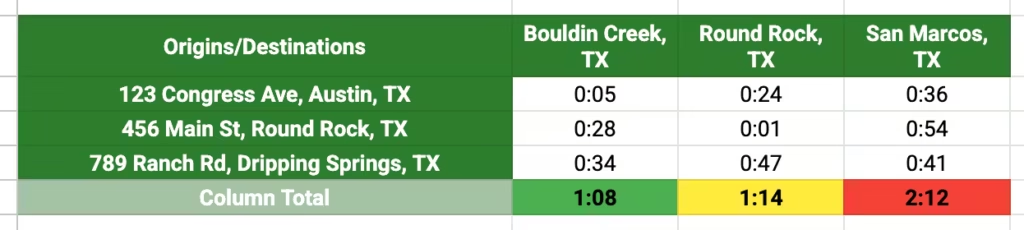
The highlighted cells show the optimal rep for each account based purely on drive time. Make a copy of this spreadsheet to see the output generated from the add-on.
Step 4: Balance the Workload
Assigning every account to the closest rep often creates imbalanced territories. One rep might end up with 25 accounts while another gets 8.
Add a summary section below your matrix to track assignments:
| A | B | C | |
|---|---|---|---|
| 1 | Rep | Account Count | Total Drive Time |
| 2 | Sarah Chen | 12 | 185 min |
| 3 | Marcus Johnson | 8 | 142 min |
| 4 | Lisa Martinez | 10 | 168 min |
If the workload is uneven, reassign accounts from overloaded reps to the next-closest rep. The matrix makes it easy to see the cost of each reassignment in added drive time.
For example, if Sarah has too many accounts, look at her assignments and find accounts where Marcus or Lisa are nearly as close. Shifting an account that’s 15 minutes from Sarah but 18 minutes from Marcus only adds 3 minutes of drive time while balancing the load.
Step 5: Factor in Account Value (Optional)
For more sophisticated territory balancing, weight assignments by account value instead of just count.
Add a column to track total revenue potential per rep:
| A | B | C | D | |
|---|---|---|---|---|
| 1 | Rep | Accounts | Drive Time | Territory Value |
| 2 | Sarah Chen | 12 | 185 min | $425,000 |
| 3 | Marcus Johnson | 8 | 142 min | $380,000 |
| 4 | Lisa Martinez | 10 | 168 min | $410,000 |
The goal becomes balancing territory value while keeping drive times reasonable. A rep with fewer but higher-value accounts may have an equivalent workload to a rep with more smaller accounts.
Tips for Larger Teams
When working with more than 10 reps or 50 accounts:
- Use the RUN FAST button in Route Matrix to process larger matrices quickly
- Consider running the matrix in batches by region if you have hundreds of accounts
- Set a maximum drive time threshold (e.g., 45 minutes) and flag any assignments that exceed it
- Re-run the matrix quarterly as accounts are added or reps change locations
Common Variations
Multiple visits per account: If some accounts require weekly visits while others are monthly, weight the drive time by visit frequency. A 30-minute drive to a weekly account costs 120 minutes per month, while a 30-minute drive to a monthly account costs only 30 minutes.
Shared territories: For inside/outside sales teams, generate separate matrices. The outside rep handles accounts beyond a certain drive time threshold while inside sales covers nearby accounts by phone.
New hire onboarding: When adding a rep, regenerate the matrix with their home base included. Identify accounts to transfer from existing reps where the new rep is closer.
Next Steps
Once you’ve assigned territories, you can use TripTally to calculate efficient multi-stop routes for each rep’s daily or weekly visits.
For ongoing territory management, save your matrix spreadsheet as a template. When accounts change or reps move, update the source data and regenerate the matrix to rebalance.
Install Route Matrix to get started with your territory assignments.