
Spreadsheets allow you to make sense of complex sets of numbers quickly. In this post, we’ll give you the skills to find the smallest value in your data while filtering the values before you evaluate them. We’ll use a real-world example of examining inventory. We have a list of Prices in column A and a list of their Status in column B.
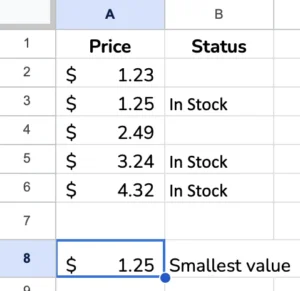
We want to find the lowest price for our In Stock items. Therefore, we need a way to filter the values so we can only consider those In stock before we look at the prices.
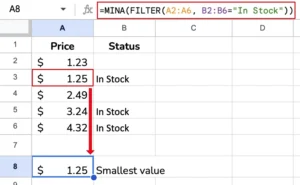
=MINA(FILTER(A2:A6, B2:B6="In Stock"))
This formula combines the MINA function with the FILTER function in Google Sheets.
Here’s how it works step-by-step:
- The
FILTERfunction evaluates the rangeA2:B6and includes the rows where the text inB2:B6is “In Stock.” - This filtered range of values from column
Ais then passed as the argument to theMINAfunction. MINAwill then find the minimum value across that filtered range from columnA.
So, in essence, this formula is:
- Identifying the products that are “
In Stock” by looking at the values in columnB - Taking only the prices for those in-stock products from column
A - And then finding the lowest price from that filtered set of in-stock prices
This can be useful when determining the minimum value, but only for a specific subset of the data. In this case, it’s finding the lowest price among the In-stock items.
The FILTER function allows you to apply conditional logic to select the relevant data before passing it to MINA (or other functions). This makes the MINA result more targeted and meaningful.
Make a copy of the spreadsheet used in this example to adapt the formulas to your spreadsheet.
Related Tutorials
-
How to Use Place Chips in Google Sheets
Learn about Place Chips and how to use them in Google Sheets.
-
How to Use Google Sheets Event Chips (+ Better Alternatives)
Learn how Event Chips work in Google Sheets.