
Timeline views in Google Sheets provide a visual way to track schedules, project milestones, employee shifts, student timetables, and event planning. Whether you’re managing a team’s work schedule, coordinating project deadlines, or organizing class schedules, a timeline view helps you see everything at a glance.
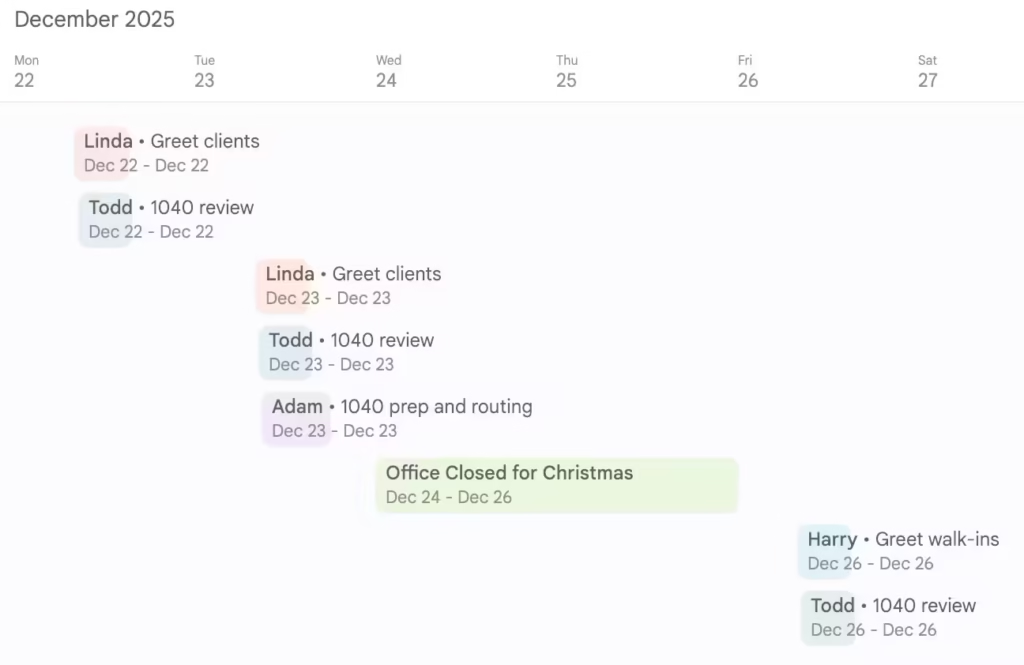
This guide shows you how to create a timeline view in Google Sheets, starting from scratch and transforming your calendar events into an interactive visual schedule.
Contents
- 1 What You’ll Need
- 2 The Challenge: Getting Your Schedule Data Into Sheets
- 3 The Solution: Import Calendar Events Directly
- 4 Step-by-Step: Create Your Timeline View
- 5 Common Use Cases for Timeline Views
- 6 Customizing Your Timeline View
- 7 Timeline View vs. Other Visualization Options
- 8 Tips for Effective Timeline Views
- 9 Beyond Basic Timeline Views
- 10 Frequently Asked Questions
- 11 Getting Started
What You’ll Need
To create a timeline view in Google Sheets, you need:
- Event data with dates and times (work shifts, meetings, classes, project tasks, etc.)
- A method to get that data into Sheets with properly formatted dates
- Google Sheets’ timeline view feature (available for all Google Workspace users)
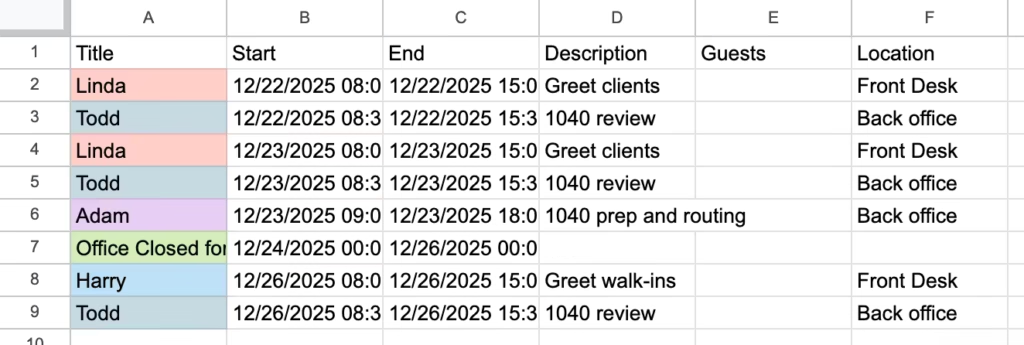
Download your own copy of the Google Sheet with the event detail and timeline.
The Challenge: Getting Your Schedule Data Into Sheets
Most schedules start in Google Calendar—employee shifts, meeting schedules, class timetables, project deadlines, and event calendars are typically managed there first. But manually copying calendar events into a spreadsheet is tedious and error-prone:
- Dates need to be formatted correctly or formulas won’t work
- Times must be entered consistently
- Event details like locations, descriptions, and attendees need to be preserved
- Recurring events multiply the work exponentially
Typing or copy-pasting dozens or hundreds of events manually defeats the purpose of automating your workflow.
The Solution: Import Calendar Events Directly
The fastest way to create a timeline view is to import your calendar events directly into Google Sheets with perfectly formatted data. Calendar Importer is a Google Sheets add-on that pulls events from any Google Calendar into your spreadsheet in seconds.
Why Calendar Importer Works Best for Timeline Views
| Feature | Benefit for Timeline Views |
|---|---|
| Perfectly formatted dates | Start and end dates import in Google Sheets date format, ready for timeline view without any formatting fixes |
| Structured data columns | Events import with consistent columns: Title, Start Date, End Date, Location, Description, Attendees—exactly what you need for scheduling |
| Fast bulk import | Import hundreds of events in seconds instead of hours of manual entry |
| Multiple calendar support | Combine work calendars, team schedules, and project calendars into one timeline view |
| Recurring events handled | Each instance of recurring shifts or meetings imports as a separate row, ready for visualization |
Step-by-Step: Create Your Timeline View
Step 1: Install Calendar Importer
- Open a new or existing Google Sheets spreadsheet
- Go to the side panel and click the + symbol
- Search for “Calendar Importer”
- Click Install and grant the necessary permissions
Install Calendar Importer from the Google Workspace Marketplace
Step 2: Import Your Calendar Events
- In your spreadsheet, go to the side panel and click the Calendar Importer icon
- Choose your date range—for example, the next 3 months of shifts or the current semester
- Select the calendar you want to import (work schedule, team calendar, class schedule, etc.)
- Click Import Events
Your events will populate the spreadsheet in organized columns with properly formatted dates and times.
Step 3: Switch to Timeline View
- With your imported data selected, click the Insert menu
- Choose Timeline
- Google Sheets will automatically detect your date columns
- Configure your timeline settings:
- Task name: Select the column containing event titles (e.g., “Shift Name” or “Meeting Title”)
- Start date: Select the column with start dates
- End date: Select the column with end dates
- Duration: Google Sheets calculates this automatically from your start and end dates
- Customize colors, bar height, and date range display to match your needs
Your timeline view will display all events visually, making it easy to spot scheduling conflicts, identify gaps, and plan around busy periods.
Common Use Cases for Timeline Views
Work Schedule Management
Create timeline views for employee shifts, team assignments, and coverage schedules. Import your work calendar to see who’s working when, identify understaffed shifts, and plan time-off requests around busy periods.
| Calendar Type | Timeline View Application |
|---|---|
| Employee shift calendar | Visual roster showing coverage by day and time, highlighting gaps or overlaps |
| Team meeting calendar | See meeting distribution across weeks to avoid scheduling fatigue |
| On-call rotation | Track who’s on call when and ensure proper rotation |
| Project deadline calendar | Visualize milestone dates and identify deadline clusters |
Student Schedule Planning
Import class schedules, assignment due dates, and exam calendars to create timeline views that help students and parents visualize academic commitments. See when heavy assignment periods hit and plan study time accordingly.
Event and Project Coordination
Track event preparation tasks, venue bookings, vendor deadlines, and team availability. Import all event-related calendars into one spreadsheet and use the timeline view to coordinate complex multi-stakeholder projects.
Customizing Your Timeline View
Filtering and Sorting
After importing your calendar events, use Google Sheets’ filter and sort features to focus on specific views:
- Filter by employee or team member: Show only one person’s schedule
- Filter by event type: View only meetings, only shifts, or only deadlines
- Sort by start date: See chronological order of upcoming events
- Sort by location: Group events by where they happen
Color Coding
Timeline views support custom colors. Assign colors based on:
- Event type (meetings, shifts, deadlines, time off)
- Team or department
- Priority level
- Status (scheduled, in progress, completed)
Updating Your Timeline
When your calendar changes, simply run Calendar Importer again to refresh your data. The add-on will update existing data and add new events to your spreadsheet, keeping your timeline view current without rebuilding it from scratch.
Timeline View vs. Other Visualization Options
| Visualization Type | Best For | Timeline View Advantage |
|---|---|---|
| Gantt charts | Project tasks with dependencies | Timeline view is simpler and faster to set up for schedule visualization |
| Bar charts | Comparing quantities | Timeline view shows when things happen, not just how much |
| Pivot tables | Summarizing and analyzing data | Timeline view provides visual schedule overview without aggregation |
Tips for Effective Timeline Views
1. Keep Your Data Clean
Timeline views work best when your data is consistent. Calendar Importer automatically provides this consistency by importing all events with the same column structure and date formatting.
2. Use Meaningful Event Titles
Timeline bars display event titles, so make them descriptive. Instead of “Meeting” use “Q4 Planning – Marketing Team” or instead of “Shift” use “Sarah – Evening Shift”.
3. Set Appropriate Date Ranges
Import and display date ranges that match your planning horizon:
- Work schedules: 2-4 weeks provides tactical planning visibility
- Project timelines: Full project duration from kickoff to delivery
- Academic calendars: Full semester or academic year
- Event planning: Planning period leading up to event date
4. Combine Multiple Calendars
Run Calendar Importer multiple times to combine events from different calendars into one timeline view. This is especially useful for:
- Combining team schedules from multiple departments
- Merging project calendars with deadline calendars
- Overlaying personal time off with team work schedules
- Consolidating class schedules from multiple teachers or students
Beyond Basic Timeline Views
Adding Calculated Fields
Once your calendar events are in Sheets with proper date formatting, you can add calculated columns:
- Duration in hours:
=(End Date - Start Date) * 24 - Days until event:
=Start Date - TODAY() - Week number:
=WEEKNUM(Start Date) - Day of week:
=TEXT(Start Date, "dddd")
Creating Reports from Timeline Data
With your schedule data in spreadsheet format, you can generate reports:
- Total hours scheduled per employee
- Meeting load by team or week
- Assignment due dates by subject
- Project milestone completion tracking
Sharing and Collaboration
Share your timeline view spreadsheet with team members, stakeholders, or family members. They can view the timeline without needing access to the original calendars, making it perfect for:
- Sharing master schedules with contractors or part-time staff
- Giving parents visibility into student schedules
- Showing clients project timelines
- Distributing team rosters without sharing personal calendar access
Frequently Asked Questions
Can I create a timeline view without Calendar Importer?
Yes, you can manually enter your schedule data into Google Sheets. Calendar Importer saves hours of manual work and ensures your dates are formatted correctly for timeline views.
What if my calendar has recurring events?
Calendar Importer handles recurring events automatically. Each occurrence imports as a separate row in your spreadsheet, making them all visible in the timeline view. For example, a daily morning standup or weekly class meeting will show as individual entries for each date.
Can I edit events after importing them?
Yes, your imported calendar data is just a standard Google Sheets spreadsheet. You can edit dates, titles, or any other details. However, these changes won’t sync back to your Google Calendar—the data is a point-in-time snapshot.
How do I update my timeline when the calendar changes?
Run Calendar Importer again to fetch updated data. You can choose to replace all data or append only new events. This keeps your timeline current as schedules evolve.
Can I combine timelines from multiple sheets?
Yes, import different calendars into separate sheets within the same spreadsheet, then use formulas or copy-paste to combine them. Alternatively, import all calendars into the same sheet and use a “Calendar Name” column to distinguish them.
Does timeline view work on mobile?
Timeline views are primarily designed for desktop use in Google Sheets. On mobile devices, you’ll see the underlying data table, but the visual timeline may not render optimally.
Getting Started
Creating a timeline view in Google Sheets transforms calendar events into visual schedules that make planning and coordination easier. By importing your calendar events with properly formatted dates and structured data, you can build timeline views in minutes instead of hours.
Install Calendar Importer to get started with fast, accurate calendar event imports that are ready for timeline visualization immediately.
Whether you’re managing work schedules, coordinating project timelines, planning academic calendars, or organizing events, timeline views in Google Sheets give you the visual clarity you need to stay organized and make better scheduling decisions.