
The YEARFRAC function calculates the number of years between two dates, returning the result as a decimal (fraction). It is commonly used for calculating age, employee tenure, or the percentage of a year completed. You can optionally specify different methods of counting days.
An alternative to YEARFAC is DATEDIF which can return the difference between two days in years, months, or days.
Remember that dates are just saved as numbers by your spreadsheet with date formatting applied. The date must be in a valid format, so you must use the DATE function, wrap it in quotes, or use a cell reference to a cell containing a date.
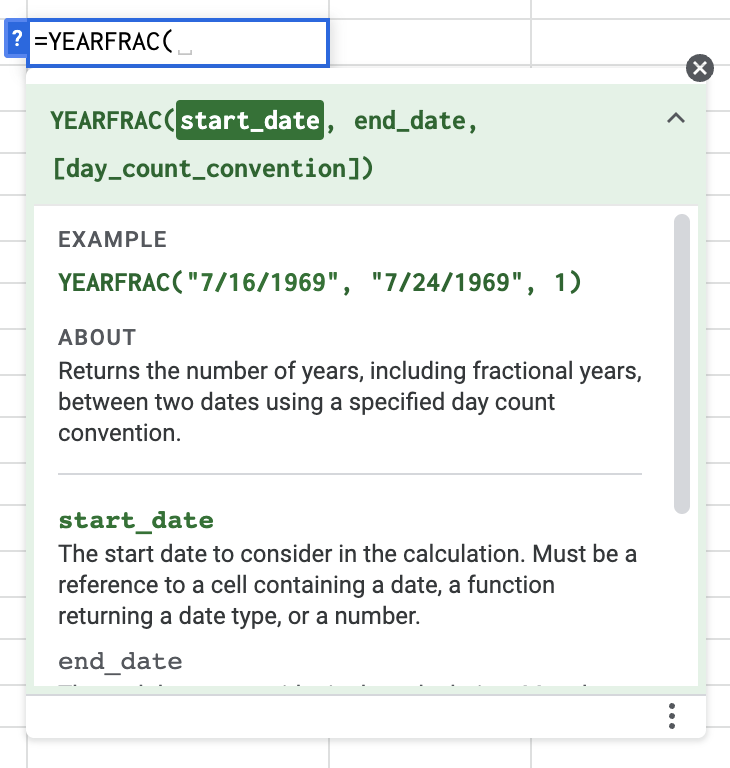
Syntax
=YEARFRAC(start_date, end_date, [basis])
start_date: The date from which to start the calculation.end_date: The date on which to end the calculation.[basis]: (Optional) The day count convention to use. Defaults to 0 (US 30/360).
Basis Codes (Cheatsheet)
The [basis] argument determines how “a year” is defined. For most general purposes (like age or tenure), use 1.
| Basis | Method | Best Used For… |
|---|---|---|
| 0 | US (NASD) 30/360 | Corporate bonds, US accounting (Assumes 30-day months). |
| 1 | Actual/Actual | General use (Age, Tenure, Physics). Most accurate. |
| 2 | Actual/360 | Short-term loans/Commercial finance. |
| 3 | Actual/365 | Standard annual modeling (ignores leap years). |
| 4 | European 30/360 | European financial instruments. |
Read more about the different day counts.
Related Functions
DATE – Takes separate year, month, and day values and returns them as a date
DATEDIF – Calculates the difference between two days in years, days, and months
DAY – Returns the value of the day from a given date
DAYS360 – Calculates interest using the 360 method
Errors
#NUM – An input is a number but is not a valid date.
#VALUE! – The input doesn’t convert to a number, such as “The other day” or “Yester-yester-day.”
YEARFRAC Function Examples
Example 1: Calculating Employee Tenure
If you need to calculate exactly how many years an employee has been with the company (e.g., for vesting schedules or benefits), YEARFRAC is perfect because it returns the decimal value (e.g., 5.42 years).
| A | B | C | |
|---|---|---|---|
| 1 | Employee | Hire Date | Tenure (Years) |
| 2 | Alice Smith | 1/15/2020 | 5.42 |
| 3 | Formula | =YEARFRAC(B2, TODAY(), 1) |
|
💡 Pro Tip: Analyze Team Timelines
Building a team dashboard? Don’t manually enter project start dates or review cycles. If these events are on your calendar, use the Calendar Importer Add-on to pull your entire timeline into Sheets.
Then, use
YEARFRACto calculate exactly how long each project took to complete.
Example 2: Calculating Age
While you can use DATEDIF to find age, YEARFRAC is useful if you want to know the exact age (e.g., 30.5 years old). Wrap it in the INT function if you only want the whole number.
| A | B | C | |
|---|---|---|---|
| 1 | Birth Date | Exact Age | Age (Whole) |
| 2 | 5/29/1990 | 34.52 | 34 |
| 3 | Formula | =YEARFRAC(A2,TODAY(),1) |
=INT(YEARFRAC(A2,TODAY(),1)) |
Example 3: Percent of Year Complete
You can create a “Progress Bar” for the current year using YEARFRAC. This is great for dashboards to visualize how much time has elapsed in 2025.
| A | B | |
|---|---|---|
| 1 | Start of Year | 1/1/2025 |
| 2 | Today | =TODAY() |
| 3 | % Complete | 45.2% |
| 4 | Formula | =YEARFRAC(A1, A2, 1) |
(Note: Format cell B3 as a Percentage to see “45.2%” instead of “0.452”).
Example 4: Financial Interest (30/360)
Financial accounting often assumes every month has 30 days (the 30/360 method) to simplify interest calculations. For this, we leave the [basis] blank or set it to 0.
Scenario: Calculate interest on a $10,000 loan at 5% annual rate for a partial year.
| A | B | |
|---|---|---|
| 1 | Principal | $10,000 |
| 2 | Start Date | 1/1/2023 |
| 3 | End Date | 4/1/2023 |
| 4 | Interest Formula | =YEARFRAC(B2,B3,0)*0.05*B1 |
| 5 | Result | $125.00 |
Example 5 – Different Count Conventions
The function has five possible values for the day_count_convention. Their outputs are slightly different, as shown in the examples below and the linked Sheet.
| A | B | C | D | E | |
|---|---|---|---|---|---|
| 1 | Start date | End date | Method | Result | Notes |
| 2 | 2/20/2018 | 7/12/2025 | 0 | 7.394444444 | US (NASD) 30/360 method |
| 3 | 2/20/2018 | 7/12/2025 | 1 | 7.389041096 | Actual/actual method |
| 4 | 2/20/2018 | 7/12/2025 | 2 | 7.497222222 | Actual/360 basis |
| 5 | 2/20/2018 | 7/12/2025 | 3 | 7.394520548 | Actual/365 basis |
| 6 | 2/20/2018 | 7/12/2025 | 4 | 7.394444444 | European 30/360 basis |
When using YEARFRAC in Google Sheets in a general situation, such as calculating someone’s age, the actual/actual method is the clearest choice. This method uses the actual days elapsed divided by the actual days in a year.
Live Examples in Sheets
Go to this spreadsheet for the examples of the YEARFRAC function shown above that you can study and use anywhere you would like.
Video Tutorial

Notes
- Accuracy: For most non-financial uses (Age, Tenure), always use Basis 1 (Actual/Actual). Basis 0 (Default) assumes 30-day months, which will result in slightly incorrect calculations for birthdays.
- Decimals: If you see too many decimal places (e.g., 5.424657), use the standard Google Sheets toolbar to “Decrease Decimal Places.”