
The WEEKDAY function returns a number representing the day of the week for a specific date.
By default, it counts Sunday as <code>1</code> and Saturday as <code>7</code>, but you can change this using the optional <code>type</code> argument.
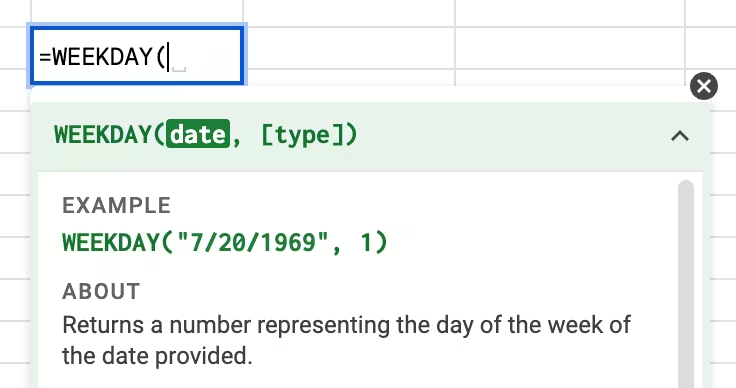
The date must be in a valid format, so you have to use the DATE function, wrap it in quotes, or use a cell reference to a cell containing a date. If your days, months, and years are in different cells, use the DATE function to combine them.
Empty cells are interpreted as 0, which Google Sheets treats as December 30, 1899 (a Saturday in the default system).
Contents
Syntax
=WEEKDAY(date,[type])
date: The date for which you want to find the day of the week. This can be a reference to a cell containing a date, a function returning a date type (likeTODAY()), or a number.[type](Optional): A number that determines how the days are counted. If omitted, it defaults to Type 1.
| Type | Numbering System | Best Used For… |
|---|---|---|
| 1 (Default) | Sunday = 1 Saturday = 7 | Standard US calendar |
| 2 | Monday = 1 Sunday = 7 | Math logic (e.g., finding weekends > 5) |
| 3 | Monday = 0 Sunday = 6 | Programming/Array logic (Zero-indexed) |
Related Functions
DATE – Takes separate year, month, and day values and returns them as a date
DATEVALUE – Returns the serial value of a date
DAY – Returns the value of the day from a given date
Video Tutorial

Errors
#NUM! – The date is out of range or the type is not an accepted number.
#VALUE! – The input for date or type is not a number such as “The other day” or “Yester-yester-day.”
Examples
Example 1: Basic Usage
Let’s look at how the different type arguments change the result for the same date.
Date: Sunday, December 7, 2025
| A | B | C | D | |
|---|---|---|---|---|
| 1 | Formula | Type Used | Result | Meaning |
| 2 | =WEEKDAY("December 7 2025") |
1 (Default) | 1 | Sunday is Day 1 |
| 3 | =WEEKDAY("December 7 2025") |
2 | 7 | Sunday is Day 7 |
| 4 | =WEEKDAY("December 7 2025") |
3 | 6 | Sunday is Day 6 |
Example 2: Highlight Weekends
A common practical use of the WEEKDAY function is within Conditional Formatting to automatically highlight weekends.
Because Type 2 numbers Monday as 1 and Sunday as 7, any number greater than 5 is a weekend.
- Select your range of dates.
- Go to Format > Conditional formatting.
- Use the formula:
=WEEKDAY(A1, 2) > 5
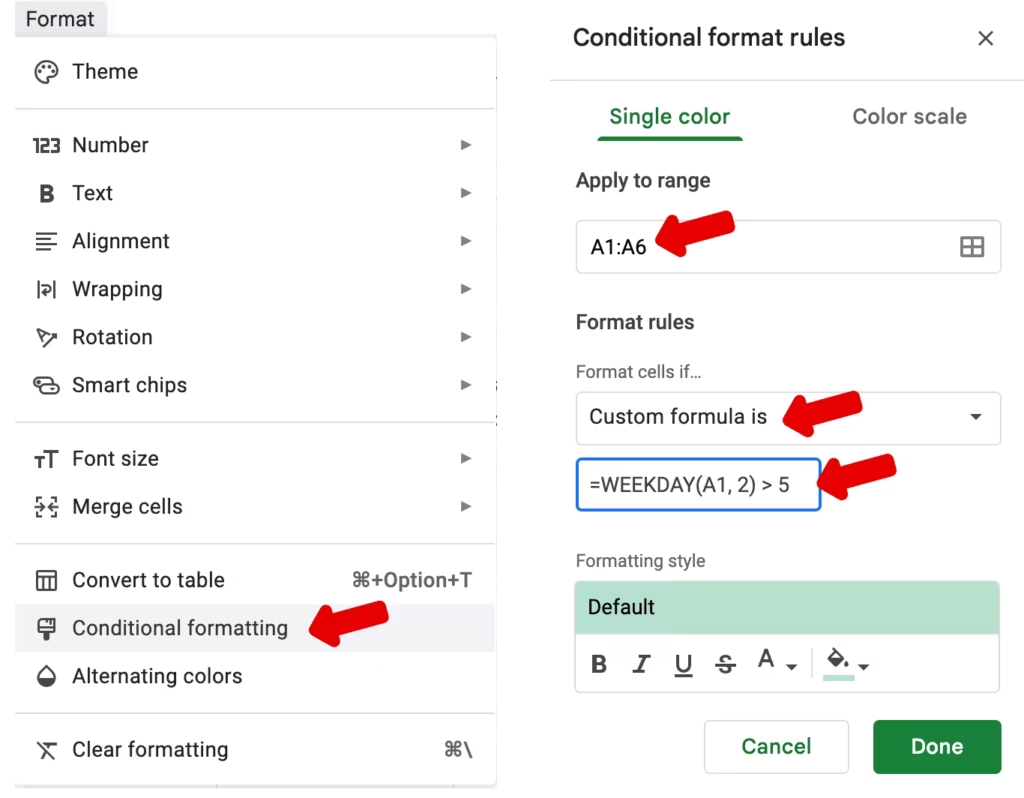
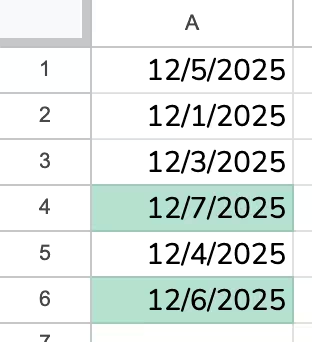
Now the weekend dates are highlighted in green from the custom conditional formatting rule using the WEEKDAY function.
Example 3 : Return Weekday as Text
If you combine the CHOOSE function with WEEKDAY, the output of WEEKDAY serves as the index to choose the text. It’s your choice if you use full-day names such as Sunday, or abbreviations as shown below.
| A | B | |
|---|---|---|
| 1 | Formula | Result |
| 2 | =CHOOSE(WEEKDAY("5/17/2017"),"Sun","Mon","Tue","Wed","Thu","Fri","Sat") |
Wed |
| 3 | =CHOOSE(WEEKDAY("5/17/2017",1),"Sun","Mon","Tue","Wed","Thu","Fri","Sat") |
Wed |
| 4 | =CHOOSE(WEEKDAY("5/17/2017",2),"Sun","Mon","Tue","Wed","Thu","Fri","Sat") |
Tue |
| 5 | =CHOOSE(WEEKDAY("5/17/2017",3),"Sun","Mon","Tue","Wed","Thu","Fri","Sat") |
Mon |
Example 4: Analyzing Schedule Data
You can combine WEEKDAY with functions like ARRAYFORMULA or COUNTIF to analyze patterns in your data, such as finding which day of the week has the most deadlines or meetings.
In this example, we have a list of meeting dates in column A, and we want to count how many fall on a Monday.
Formula: =COUNTIF(ARRAYFORMULA(WEEKDAY(A2:A, 2)), 1)
(This counts rows where the weekday is “1”, which corresponds to Monday in Type 2).
💡 Pro Tip: Analyze Your Real Schedule
Formulas are most useful when applied to real data. Instead of manually typing dates to test these functions, use the Calendar Importer for Google Sheets.
It pulls your entire Google Calendar history into columns, allowing you to instantly use the
WEEKDAYfunction to analyze your actual productivity and time usage.
Live Examples in Sheets
Go to this spreadsheet for the examples of the WEEKDAY function shown above that you can study and use anywhere you would like.
Notes
- Consider using the TEXT function to convert dates to words. For example, see how to change a date value to the month’s name.
- The
WEEKDAYfunction returns a number, not text. If you want the name of the day (e.g., “Monday”), use the TEXT function:=TEXT(A1, "dddd").
See Also
- This tutorial shows two methods to return the day of the week as text instead of a number.
- You can extend the WEEKDAY function using VLOOKUP to map the output to a text string.