
Your team is spread across several cities and you need one place to meet. The spot with the least total driving sounds like the obvious choice, but it can leave one person on the road far longer than everyone else.
This tutorial uses the Route Matrix add-on to compare possible venues in Google Sheets with real drive times, then checks both the total driving and the longest single drive, so you can pick a spot that’s fair as well as efficient. It works the same for offsites, training days, and family reunions, with no API key or code.
What You’ll Build
By the end, you’ll have a grid of drive times with your people down the side and your venues across the top, a total for each venue, and a Longest Drive row showing how far the unluckiest person has to travel.
Step 1: Enter Both Lists on One Tab
Route Matrix reads both lists from the same tab, so put them side by side and leave a column empty between them:
| A | B | C | D | E | |
|---|---|---|---|---|---|
| 1 | Team Member | Home Base | Venue | Address | |
| 2 | Alex | Dayton, OH | Middletown | Middletown, OH | |
| 3 | Jordan | Cincinnati, OH | Richmond | Richmond, IN | |
| 4 | Sam | Indianapolis, IN | Oxford | Oxford, OH |
If several people are coming from the same place, list that location once for each person so the totals count everyone. Full street addresses give more precise results than town names.
Step 2: Open Route Matrix
Install Route Matrix from the Google Workspace Marketplace if you haven’t already. It opens from the add-ons side panel on the right of your sheet; click the Route Matrix icon there.
Step 3: Make Your Venues the Ending Addresses
- Set Sheet with Address Data to the tab with your two lists
- Set Range of Starting Address(es) to where people are coming from (B2:B4)
- Set Range of Ending Address(es) to your venues (E2:E4)
People become the rows and venues become the columns, so each column shows what one venue would mean for the whole group.
To show names instead of addresses, tick Use custom labels for locations and enter A2:A4 as the origin labels and D2:D4 as the destination labels. Each full address is kept in a note on its name.
Step 4: Pick Your Options
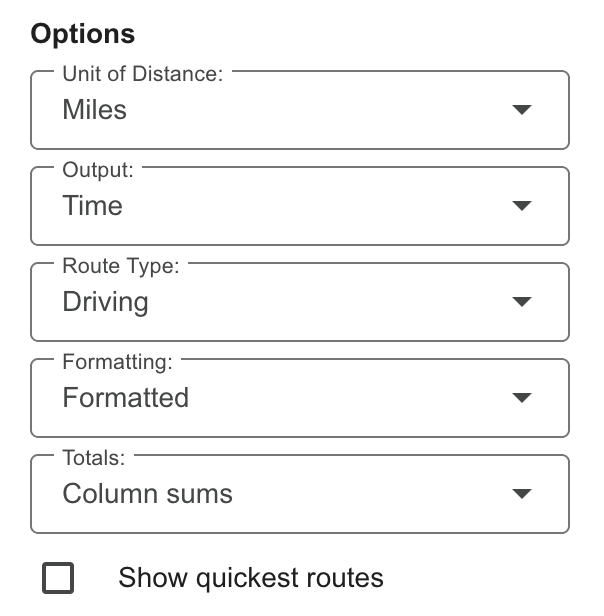
- Output: Time, or Distance if mileage is what you’re reimbursing
- Route Type: Driving
- Formatting: Formatted, for colored headers and a green-to-red scale on the totals
- Totals: Column sums, to add up each venue
Step 5: Click RUN and Compare the Totals
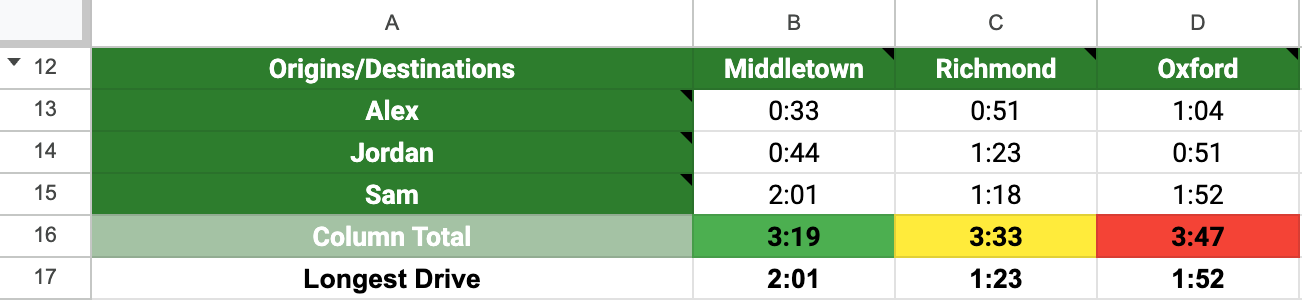
Click RUN. Route Matrix adds a new tab with a short summary of the run at the top, followed by the grid. The Column Total row adds up everyone’s drive to each venue, colored green for the lowest and red for the highest.
In this example, Middletown has the lowest total at 3 hours 19 minutes, Richmond is next at 3:33, and Oxford is highest at 3:47. If total driving were all that mattered, you’d stop here.
Step 6: Add a Longest Drive Row
Totals hide how the driving is shared. A short formula shows it. The grid starts in row 12 because the run summary fills the rows above it. In this example the times are in rows 13 to 15 and the totals are in row 16, so type Longest Drive in A17, enter this formula in B17, and fill it across to D17:
=MAX(B13:B15)If your list is longer, change the row numbers to match, and put the formula in the row below your totals.
Step 7: Choose the Fairest Spot
Now the choice is clearer. Middletown has the lowest total, but Sam drives 2 hours 1 minute to get there. Richmond adds 14 minutes to the group’s total, and nobody drives more than 1 hour 23 minutes. Oxford doesn’t win on either count.
There’s no single right answer. If the company is paying for mileage and time, the lowest total may win. If everyone has to drive there and back in a day, the shorter longest drive is usually the fairer pick.
How Much It Costs
Runs of up to 9 routes are free. A route is one starting location paired with one ending location, so this 3 × 3 example is 9 routes and costs nothing. Larger runs use paid routes, at $15 for 1,000 or $50 for 5,000, which you can also buy inside the add-on. RUN asks before spending any paid routes.
For example, 12 people and 4 venues is 48 routes, about $0.72 worth from a pack of 1,000.
Related Tutorials
- How to Make a Distance Matrix in Google Sheets covers the grid itself
- How to Find the Nearest Location for Each Address answers the opposite question: which site is closest for each person
- How to Choose the Optimal Warehouse Location uses the same column totals to compare sites for a business
- How to Compare Employee Commutes for an Office Move uses the same grid with a rush-hour departure time
Frequently Asked Questions
Can I compare by distance instead of time?
Yes. Set Output to Distance and choose miles or kilometers. The totals and the Longest Drive row work the same way.
What if someone is taking the train or walking?
Route Type applies to the whole run, so one run is all driving, walking, bicycling, or transit. To mix them, do a separate run for the people using each one.
Do I need a Google Maps API key?
No. Route Matrix works without an API key or any code.
How many people and venues can I compare?
Runs of up to 9 routes are free, and paid runs handle thousands of routes.
Get Started
Install Route Matrix and try it with your own group. Up to 9 routes per run are free.