
You have a list of customers and a list of stores. Which store is closest to each customer? The same question comes up with technicians and service calls, warehouses and delivery addresses, or offices and employees.
Checking Google Maps one address at a time gets slow after a few rows, and straight-line distance can mislead because roads rarely run straight. This tutorial uses the Route Matrix add-on to find the closest location for every address at once, by real drive time, with no API key or code.
What You’ll Build
By the end, you’ll have a grid of drive times with your customers down the side and your stores across the top, a ranked list of the closest stores for each customer, and a Nearest Store column with the answer for every row.
Step 1: Enter Both Lists on One Tab
Route Matrix reads both lists from the same tab, so put them side by side. Leave a column empty between them:
| A | B | C | D | E | |
|---|---|---|---|---|---|
| 1 | Customer | Address | Store | Address | |
| 2 | Customer A | Dublin, OH | Hilliard Store | Hilliard, OH | |
| 3 | Customer B | Grove City, OH | Gahanna Store | Gahanna, OH | |
| 4 | Customer C | Westerville, OH | Worthington Store | Worthington, OH |
This example uses town names to keep it short. Full street addresses give more precise results, and the two lists don’t need to be the same length.
Step 2: Open Route Matrix
Install Route Matrix from the Google Workspace Marketplace if you haven’t already. It opens from the add-ons side panel on the right of your sheet; click the Route Matrix icon there.
Step 3: Make Your Customers the Starting Addresses
- Set Sheet with Address Data to the tab with your two lists
- Set Range of Starting Address(es) to your customer addresses (B2:B4)
- Set Range of Ending Address(es) to your store addresses (E2:E4)
The order matters. Route Matrix ranks the ending locations for each starting location, so customers have to be the starting addresses for it to list the closest stores for each customer.
To show names instead of addresses, tick Use custom labels for locations and enter A2:A4 as the origin labels and D2:D4 as the destination labels. Each full address is kept in a note on its name.
Step 4: Pick Your Options
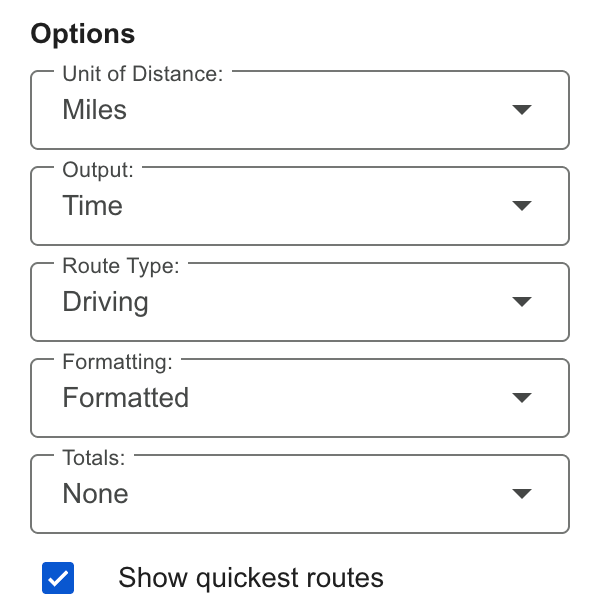
- Output: Time to rank by drive time, or Distance to rank by miles or kilometers
- Route Type: Driving, or Walking, Bicycling, or Transit if those fit better
- Formatting: Formatted, for colored headers
- Show quickest routes: tick this one, since it’s what ranks the stores
- Departure Time (optional): under Show more. Pick a future day and time and driving times include predicted traffic.
Step 5: Click RUN and Read the Results
Click RUN. Route Matrix adds a new tab with a short summary of the run at the top, followed by the grid: one row per customer and one column per store.
To the right of the grid is the Quickest Routes block. It has one column per customer and ranks up to five stores from closest (1) down, so each customer’s closest store is in the first row. With Distance as the output, the block is titled Shortest Routes.
In this example:
- Customer A → Worthington Store (12 min), with Hilliard Store just behind, also showing 12 minutes
- Customer B → Hilliard Store (21 min)
- Customer C → Worthington Store (13 min)
The second row is useful too. It’s your backup when the closest store is out of stock or the closest technician is already busy. Gahanna Store isn’t the closest for anyone here, but it’s second for Customers B and C.
Step 6: Put the Nearest Store Next to Each Customer
The Quickest Routes block runs sideways, so a long customer list makes it very wide. A short formula puts the answer in a single column instead, and Route Matrix leaves an empty column between the grid and the block for it.
In this example the store names are in row 12 and the first customer is in row 13. Type Nearest Store in E12, enter this formula in E13, and fill it down:
=INDEX($B$12:$D$12, MATCH(MIN(B13:D13), B13:D13, 0))MIN finds the lowest time in the row, MATCH finds which column it’s in, and INDEX returns the store name at the top of that column. If you have more stores, change D to your last store column and use the empty column after the grid. If your header isn’t in row 12, change the row numbers to match.
Step 7: Highlight the Closest Store in the Grid (Optional)
Route Matrix’s Formatted option colors the headers and any totals, but it doesn’t mark the lowest value in each row. Conditional formatting does:
- Select the times (B13:D15 in this example)
- Click Format, then Conditional formatting
- Under Format cells if, choose Custom formula is
- Enter
=B13=MIN($B13:$D13) - Click Done

Make a copy of this spreadsheet to see the finished example.
How Much It Costs
Runs of up to 9 routes are free. A route is one starting location paired with one ending location, so the 3 × 3 example above is 9 routes and costs nothing. Larger runs use paid routes, at $15 for 1,000 or $50 for 5,000, which you can also buy inside the add-on. RUN asks before spending any paid routes.
For example, 40 customers and 6 stores is 240 routes, about $3.60 worth from a pack of 1,000. A driving route with a departure time includes traffic and counts as two, so the same run with traffic uses 480 routes, about $7.20 worth.
Where This Comes in Handy
- Service calls: send the closest technician to each job, using a departure time so traffic counts
- Retail: point each customer to their nearest store
- Delivery: assign each address to the closest depot or warehouse
- Staffing: match each employee to the nearest office or job site
Closest isn’t always best. If one store ends up with far more customers than the others, How to Assign Sales Territories by Drive Time shows how to balance them, and SolveSheet, our optimization add-on, can do the balancing for you. If you’re choosing where to open a new site, see How to Choose the Optimal Warehouse Location. If you’re moving an office, How to Compare Employee Commutes for an Office Move shows who gains and who loses. For more on the grid itself, see How to Make a Distance Matrix in Google Sheets. To pick one place for a whole group, see How to Find the Fairest Meeting Spot.
Frequently Asked Questions
Can I find the nearest location by distance instead of time?
Yes. Set Output to Distance and choose miles or kilometers. The nearest store by distance isn’t always the nearest by time, so pick the one that matches your question.
Does this use straight-line distance?
No. Route Matrix uses real routes from Google Maps, so the results follow roads.
Do I need a Google Maps API key?
No. Route Matrix works without an API key or any code.
How many addresses can I compare?
Runs of up to 9 routes are free, and paid runs handle thousands. A 5,000-route run, such as 1,000 customers and 5 stores, finishes in under 20 seconds. If a run is ever too big, Route Matrix stops before charging and tells you what size to split it into.
Can I do this with a formula instead?
TRAVELTIME returns the drive time for one route, so comparing every customer with every store takes a formula for each pair. That works for a handful of locations, but Route Matrix is quicker for full lists.
Get Started
Install Route Matrix and try it on your own list. Up to 9 routes per run are free.