
The short answer: Google Sheets has no built-in function for driving distance. A formula can only work out the straight-line distance between two sets of coordinates, so the distance by road has to come from Google Maps, through an add-on or a script. The quickest way is the Travel Formulas add-on: with the start address in A2 and the destination in B2, type =TRAVELDISTANCE(A2, B2). For a long list of trips, such as a mileage log, TripTally fills in the distance, the drive time and a Google Maps link for every row in one run.
Which method fits your sheet?
| What you have | Use | You get |
|---|---|---|
| A few start and end addresses, or results that should update when an address changes | Travel Formulas | =TRAVELDISTANCE and =TRAVELTIME in any cell |
| A list of trips with a start and an end address on each row: a mileage log, an expense report | TripTally | The distance, the time and a Google Maps link for every row, 1,000 or more pairs at once |
| One trip with several stops, visited in order | RouteTally | The distance and time of every leg, and a total for the trip |
| A list of starting points and a list of destinations, and you want every combination | Route Matrix | A distance matrix: a grid of distances or times |
| Time to write and maintain code yourself | Google Apps Script | A custom function you build and look after |
Method 1: the TRAVELDISTANCE formula
- Install Travel Formulas from the Google Workspace Marketplace.
- Put the start addresses in one column and the destinations in the next, one trip per row. Include the city and state or the ZIP code, so Google Maps finds the right place.
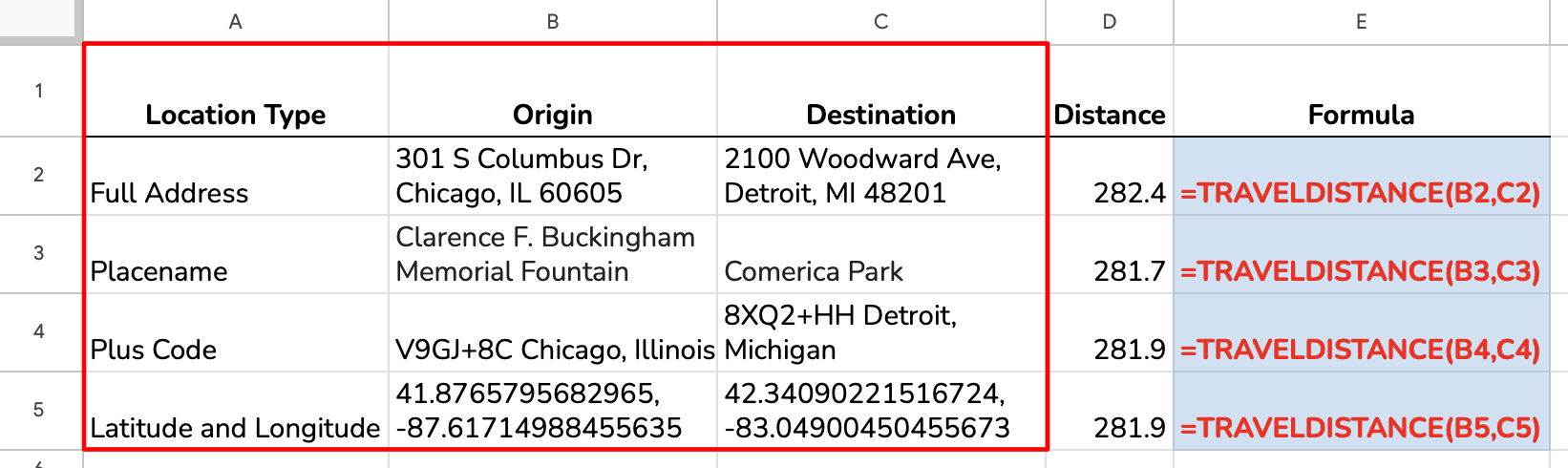
- In the next column, type the formula with the two cells. In the example below the start is in B2 and the destination in C2, so D2 holds
=TRAVELDISTANCE(B2, C2). The result is the driving distance in miles. - Fill the formula down the column. For a total, add up the column with
=SUM(D2:D100).
Two optional arguments change what comes back: the mode of travel and the unit. =TRAVELDISTANCE(B2, C2, "driving", "km") returns kilometers, and the modes are “driving” (the default), “walking”, “bicycling” and “transit”. For the drive time, use =TRAVELTIME(B2, C2). It returns text that looks like a number, so wrap it in VALUE() before you use it in other formulas.
For a one-off check, you can type the locations straight into the formula, in quotes, instead of pointing at cells:

The paid formulas do what the free ones cannot. TRAVELDISTANCE_API can avoid tolls, highways or ferries and keeps working past Google’s daily limit, and TRAVELTOLLS_API estimates the toll cost of a route.
Travel Formulas has a free 7-day trial, then costs $45 a year. Every argument is explained on the Travel Formulas and paid formulas pages, and the TRAVELDISTANCE function page has more examples.

Method 2: TripTally for a whole list
Formulas recalculate as you work. That is what you want in a working spreadsheet, and a nuisance when you have a finished list of 500 trips to look up once. TripTally runs once and writes plain values into the sheet.
- Install TripTally from the Google Workspace Marketplace.
- Put the start addresses in one column and the end addresses in the next.
- Open TripTally from the add-ons panel on the right of your sheet and choose Use an Existing Sheet.
- Set the Range of Starting Address(es) and the Range of Ending Address(es): select the cells, then click Use Active Selection.
- Pick the Route Type (Driving, Walking, Bicycling or Transit), miles or kilometers, and what to include in the result, such as the distance, the time and a Google Maps link.
- Click RUN.
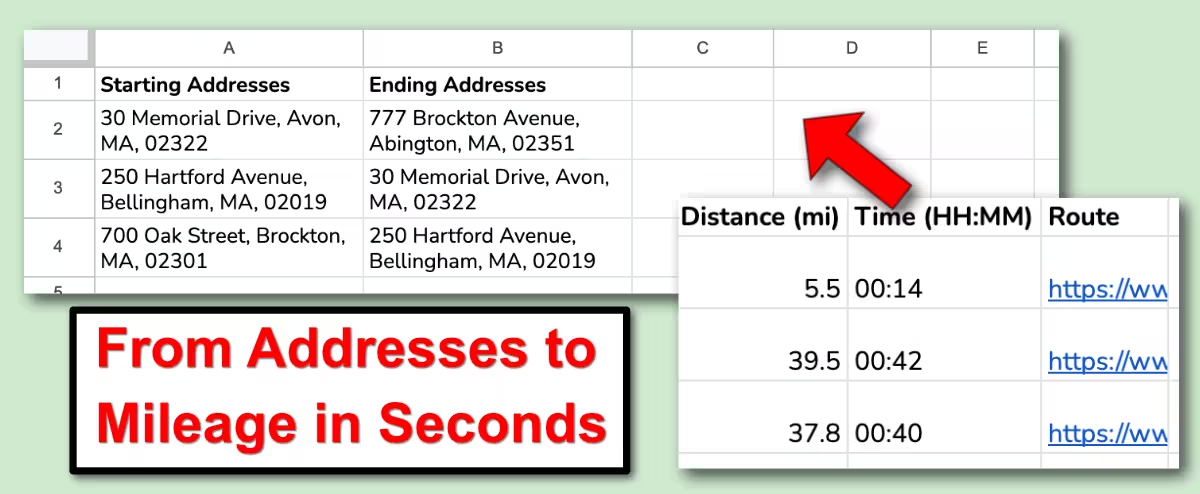
To estimate the travel time in traffic, add a departure date and time in the future. TripTally handles 1,000 or more pairs in one run, which makes it the tool for mileage logs for IRS deductions and employer reimbursement. It has a free 7-day trial, then costs $53 a year.

Method 3: write your own Apps Script function
Google publishes a sample custom function that looks up the driving distance through the Maps service built into Apps Script. You paste it into Extensions > Apps Script and call it from a cell like any formula. It is free, but the code is yours to look after: you decide what happens when Google Maps cannot find an address, you fix it when something changes, and it counts against the same daily Google Maps limit as the add-ons. It is a sensible choice if you are comfortable maintaining a script.
Straight-line distance, if that is all you need
With latitude and longitude, a formula can work out the distance as the crow flies, without an add-on. Put the start’s latitude and longitude in A2 and B2 and the end’s in C2 and D2:
=3959*ACOS(MIN(1, SIN(RADIANS(A2))*SIN(RADIANS(C2)) + COS(RADIANS(A2))*COS(RADIANS(C2))*COS(RADIANS(D2-B2))))The result is in miles; use 6371 instead of 3959 for kilometers. New York to Los Angeles comes out at about 2,446 miles in a straight line, against 2,790 miles by road in the TRAVELDISTANCE example above. Use the straight-line figure for rough comparisons, and never for a mileage claim.
Google’s daily limit
Google limits how many routes an add-on or a script can look up each day: 1,000 or 10,000, depending on the type of Google account (see Google’s daily quotas). TripTally, Travel Formulas and Route Matrix share that allowance. To stop formulas looking up the same routes again, set File > Settings > Calculation to “On change”, and paste finished results as values.
The paid Travel Formulas and extra daily route requests for TripTally go past the limit. For a few thousand addresses in one go, TripTallyPlus is a web app that works through the whole list and hands back a finished table. The first 100 routes are free, with no subscription.
Frequently asked questions
Does Google Sheets have a formula for driving distance?
No. Sheets has no function that looks up road distance. A formula on latitude and longitude gives only the straight-line distance. Driving distance and travel time come from Google Maps, through an add-on such as Travel Formulas or TripTally, or through a script you write.
Can I get kilometers instead of miles?
Yes. In Travel Formulas, add “km” as the fourth argument: =TRAVELDISTANCE(A2, B2, "driving", "km"). TripTally has a Unit of Distance choice in its panel.
Can I get the drive time as well?
Yes. =TRAVELTIME(A2, B2) returns the trip duration, and TripTally returns the time alongside the distance. Both take a future departure time to estimate traffic.
What can I use as a location?
Anything Google Maps understands: a street address, latitude and longitude, a Plus Code, a city or country, an airport, a park or another point of interest. Place chips work too.
Can I use it for an IRS mileage log?
Yes. List each trip’s start and end address, run TripTally, and the sheet becomes a documented log of your miles. If your trips are already in Google Calendar, Calendar Mapper builds the log from your events.
Do I need a Google Maps API key?
No. Both add-ons work as soon as you install them. There is no Google Cloud account or key to set up.
Why does my formula show #NAME?
Sheets does not recognize the formula yet. Open Extensions > Travel Formulas > Activate / Refresh License; you only need to do this once per Google account, and new installs do it automatically. If someone else built the sheet, you need the add-on installed too, or they can paste their results as values.
Try it on your own addresses. Both add-ons have a free 7-day trial.